
Bookmarks
A library of 270 free web tools: developer utilities, design, converters, productivity, privacy and security, media, learning, and free AI helpers. You can add your own.
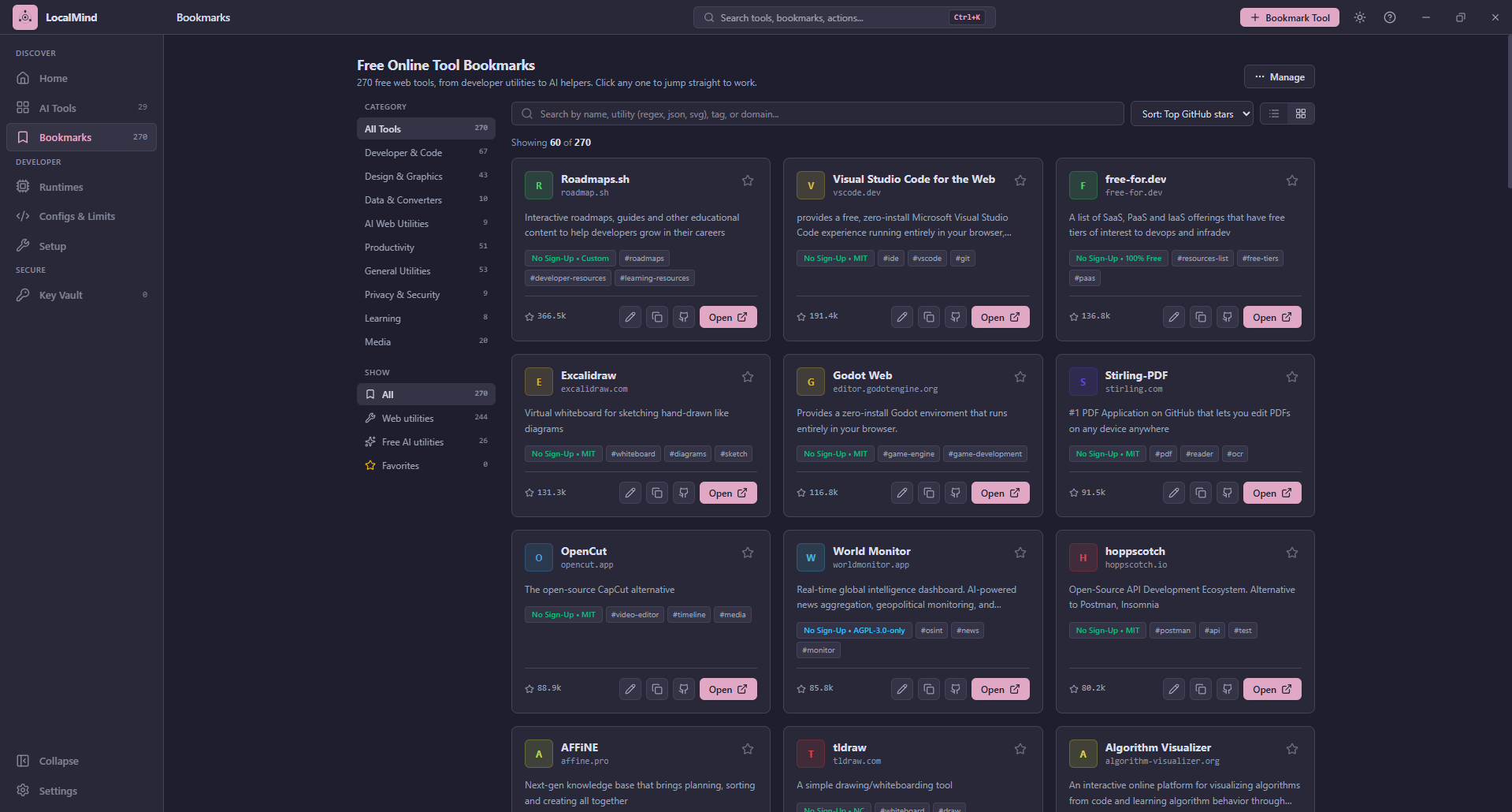
Finding a tool
- Category rail on the left shows each category with a count. Empty categories are hidden.
- Show narrows by type: All, Web utilities, Free AI utilities, or Favorites.
- Search matches the name, description, link, your notes and tags.
- Sort by top GitHub stars, most used, name A to Z, or recently added. Most used counts the times you opened a bookmark from LocalMind.
- Click a tag to filter by it. A chip shows the active tag; click it to clear.
Use the list or grid toggle to change the layout. The list loads 60 bookmarks at a time. Press Show N more at the bottom for the next batch.
Actions on a bookmark
| Action | Notes |
|---|---|
| Star | Add to favorites |
| Open | Opens the site in your browser and counts a visit |
| Edit | Change any field |
| Copy URL | Copies the link. A red cross appears if the clipboard refused |
| GitHub | Opens the project's repository, when known |
| Delete | Only for bookmarks you added, after a confirmation |
The round avatar is the first letter of the name on a color taken from the site's domain, so the same site always looks the same. LocalMind does not download site icons, because asking an icon service for them would tell it which sites you save.
Adding a bookmark
Press Bookmark Tool in the title bar (or b). Paste a link first, and the title is filled in from it. Then choose a category, say whether it is an AI tool or a utility, and optionally add a badge, tags and private notes. Notes are never shown anywhere else.
Links must be http:// or https://. Bare addresses get https:// added, and a link you already have is refused, naming the existing entry.
The Manage menu
Manage at the top of the page holds:
- Export and Import: the full backup and move window, below.
- Export Markdown: exports what the page is currently showing, as a table or a list.
- Quick JSON backup: downloads all bookmarks as JSON in one click.
- Restore defaults: puts the built-in 270 back. It asks first.
Export and import
Manage, then Export and Import has two tabs.
Export
Choose a format, and whether to include all bookmarks or only favorites. You see a preview and the file size, then either Copy or Download File.
| Format | Use it to |
|---|---|
| JSON | Back up and restore LocalMind bookmarks, including favorites, notes and click counts |
| HTML | Load your bookmarks into Chrome, Firefox or Edge, in their standard format |
| CSV | Open in Excel or Google Sheets |
| Markdown | Share a readable list in a README, wiki or chat |
Downloads are named like localmind_bookmarks_all_2026-10-11.json. CSV files carry a marker so Excel reads accented letters correctly, and cells that could run as a formula (starting with =, +, - or @) are made safe.
Import
Pick a file or paste text. LocalMind detects JSON, browser HTML or CSV (a CSV with just Title and URL columns works). Before changing anything it shows how many bookmarks are new, how many you already have, and how many were left out. Entries are left out if they have no title or are not an http or https link.
Then choose how to apply it:
| Strategy | Effect |
|---|---|
| Merge and Update (default) | Adds new links. For links you already have, fills in missing details from the file but keeps your favorites, click counts and notes |
| Add Only New | Leaves existing bookmarks as they are |
| Replace All | Deletes your current list first. Asks you to confirm, and says how many you would lose |
| Reset to N Defaults | Replaces everything with the built-in list. Also asks first |
When it finishes, it tells you exactly what happened, for example "Imported: 5 added, 2 updated, 1 skipped."
Imported browser bookmarks all land in the utilities category with an imported tag, because browser folders are not mapped to LocalMind categories. A file bigger than 5 MB is refused.
TIP
The JSON backup holds bookmarks only, never API keys, so it is safe to share.