
AI Tools
A catalog of 29 free-tier AI tools, plus any you add. Each row tells you what the free tier gives you, so you can pick a tool without opening ten websites.
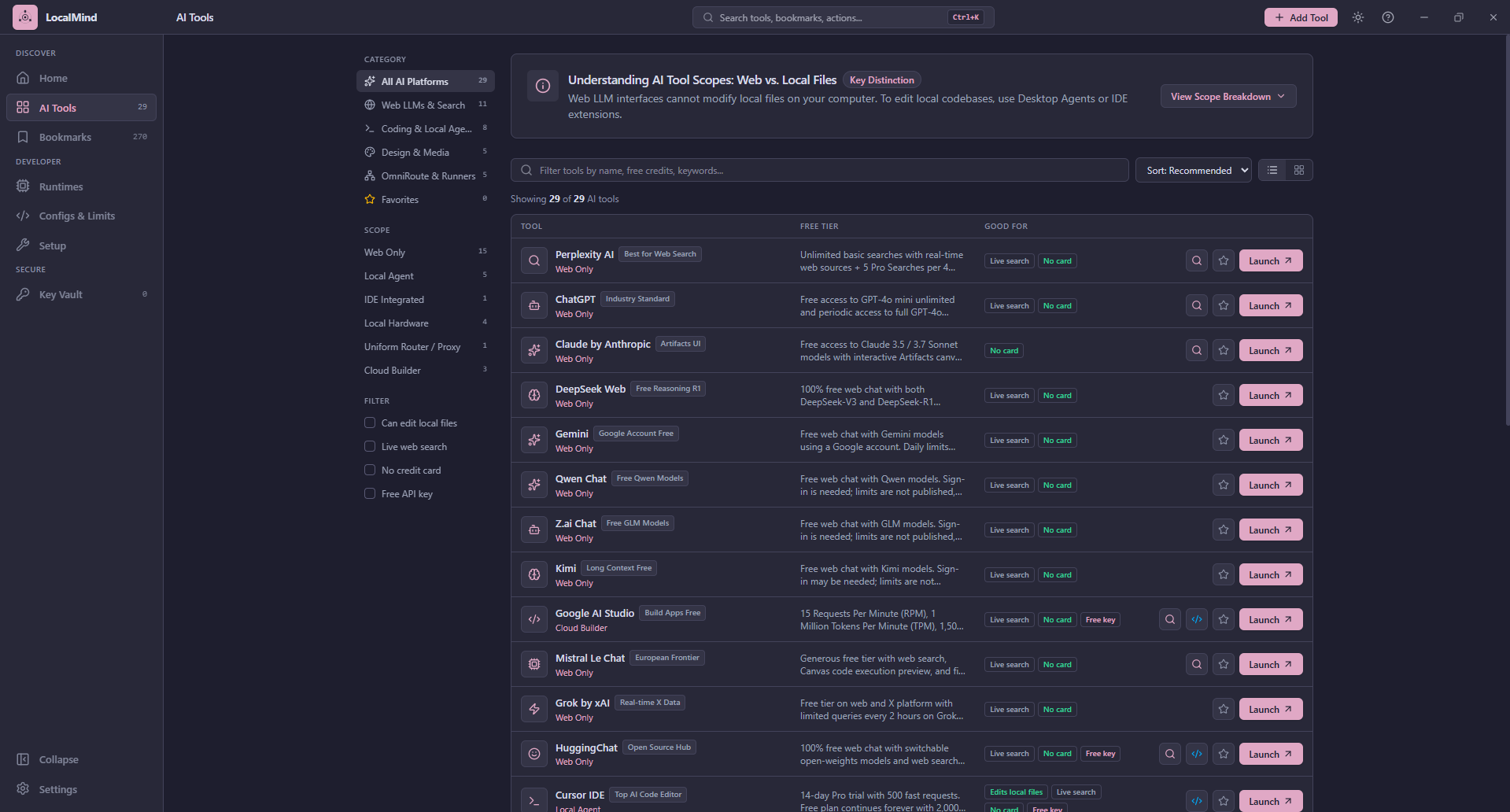
Reading a row
Each row shows the tool's name and badge, its scope (what it can really do), a short free-tier summary, and small tags such as Live search, No card and Free key. On the right are the actions.
| Action | What it does |
|---|---|
| Magnifier | Quick Query: type a prompt and open it in this tool (only on tools that support it) |
</> | Open the Config Exporter for this tool's provider |
| Star | Add or remove from your favorites |
| Trash | Delete (only on tools you added yourself, after a second click to confirm) |
| Launch | Open the tool in your browser |
Switch between the compact list and the card grid with the toggle next to the sort menu. LocalMind remembers your choice.
Scopes: what a tool can really do
The most useful label on the page. A chatbot in a browser cannot touch your files, while a local agent can edit your code. LocalMind labels every tool:
| Scope | Meaning |
|---|---|
| Web Only | Runs on a website. Cannot read or edit your local files |
| Local Agent | A program on your machine (a CLI) that can edit files and run commands |
| IDE Integrated | A code editor or editor plugin. Can edit files in your project |
| Local Hardware | A runner that executes models on your own computer |
| Uniform Router / Proxy | One local endpoint in front of several providers |
| Cloud Builder | A hosted tool that builds apps or designs for you |
Can edit local files is shown only for local agents and IDE tools. The View Scope Breakdown panel at the top of the page explains each scope with examples.
Filtering
The rail on the left narrows the list:
- Category: All, Web LLMs and Search, Coding and Local Agents, Design and Media, OmniRoute and Runners, Favorites. The counts do not change when you apply other filters.
- Scope: show only one scope.
- Filter: tick Can edit local files, Live web search, No credit card or Free API key. Ticking several shows tools that match all of them.
Use the search box for a name, a word in the description or free-tier text, or a tag. Sort by Recommended, Name A to Z, or Most starred. If nothing matches, the page offers Reset All Filters and Add Tool.
Quick Query
Quick Query opens a tool with your prompt already in it. Type the prompt, press Launch, and LocalMind either:
- opens the tool's link with your prompt filled in, or
- for tools that cannot take a prompt from a link, copies the prompt to your clipboard, opens the tool, and tells you to paste it. The dialog says this before you launch.
Only some tools support prefilled prompts, and custom tools never do.
Adding your own tool
Press Add Tool (or Ctrl+K, then choose Add Tool). Fill in a name, a link, a category and scope, and optionally a description, free-tier notes, a download link, and tags. The tool is saved on this computer and appears in the catalog, and in Favorites if you star it.
Links must start with http:// or https://. If you type a bare address such as example.com, LocalMind adds https://. Other kinds of link (javascript:, file:, ftp:) are refused, and so are duplicates of a tool already in the catalog. You can delete a tool you added but not edit it; delete it and add it again.
How accurate is the free-tier information?
The summaries are written by hand and providers change plans often, so treat them as a starting point and check the tool's own page before relying on a limit. The detailed numbers are in the rate-limit table, which shows when each row was last reviewed, and LocalMind can fetch fresh data without a new release. See Live provider data.